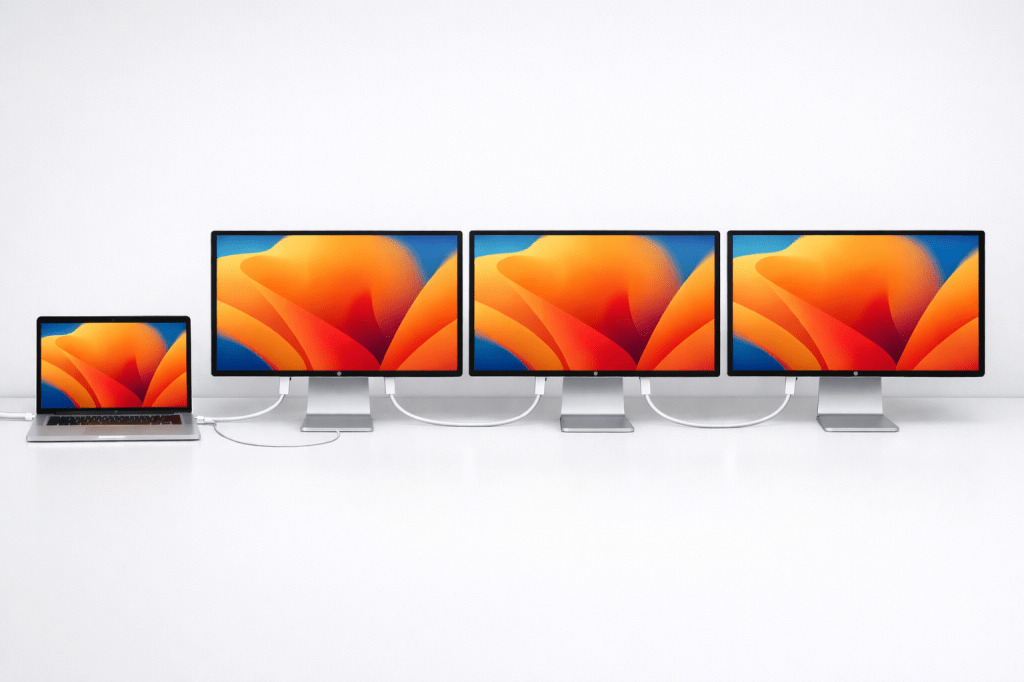
With the release of the new Apple Studio Display and the Studio Display XDR, comes a long requested feature of daisy chaining Apple Studio Displays or for that matter Daisy Chain of thunderbolt accessory support.
A Little Background
When you Daisy Chain your Thunderbolt devices, you have two connections:
- Upstream: Travels towards the computer
- Downstream: Travels towards the next device in the chain.
Essentially the upstream connects to your computer from the first device in the chain, then the downstream connects to each device in the chain until the end. The controller inside acts like router ensuring that the total bandwidth is distributed dynamically based on the chain. This controller is called a crossbar switch.
In Daisy Chain configurations, each controller on each Thunderbolt supported device examines the data sent across the chain and determines where in the chain it’s supposed to go then sends it on its way. device etc.
Understanding the Port Situation
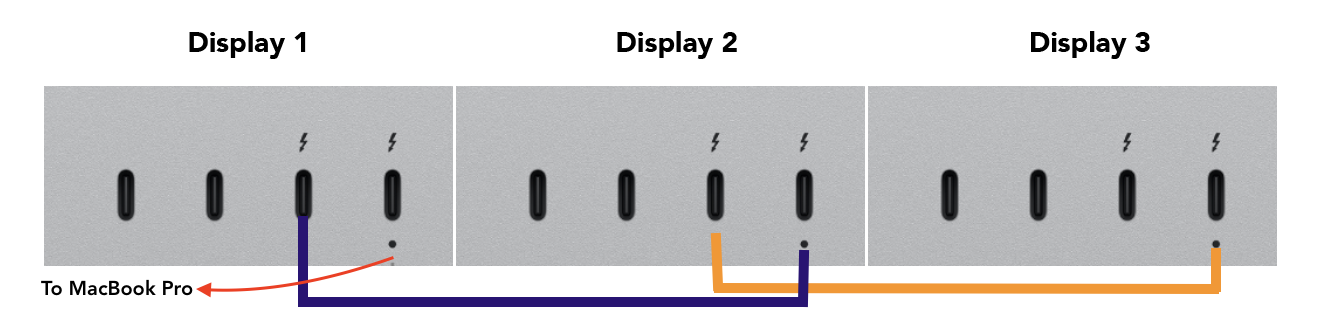
On the back of the Studio Display and the Studio Display XDR, you have four (4) ports.
- 1x Thunderbolt 5 Upstream port (Identified by a gray dot)
- 1x Thunderbolt Downstream port
- 2x USB-C Ports

If you’re cabling these displays in a Daisy Chain, your connections should connect from the downstream port of Display 1, to the up stream of Display 2, and so on. The upstream of Display 1 would connect to your M5 MacBook Pro. The Display setup below is dependent on your Mac and monitor support. This is an example of a triple monitor setup.
You can reference Apple’s support document for details (Linked Below), but we’re going to dive into some of the nuance to help clear up a few specific items.
2026 Studio Display and M5 MacBook Air
On the MacBook Air, including M5, Daisy Chaining is not supported. It is a limitation of the existing Thunderbolt 4 controller currently in the MacBook Air. Thunderbolt 4 itself is able to Daisy Chain, but the controller in the MacBook Air lacks the switch required to handle the inspection of the data and proper routing to the right device. So you’ll need to connect the monitors to a docking station like the Caldigit TS4 dock, OR direct to the MacBook Air.
2026 Studio Display and the M5 MacBook Pro (non Pro/Max)
While the M5 MacBook Pro has the same chip as the M5 MacBook Air, the M5 MacBook Pro DOES indeed support Daisy Chaining of Thunderbolt displays. So you can get the ability to Daisy Chain with the M5 MacBook Pro. If you plan to use multiple Thunderbolt 5 accessories this may be a reason to move to this model from the Air along wit other benefits like the MacBook Pro Display.
2026 Studio Display and the M5 MacBook Pro (Pro and Max)
While there was a lot to unpack from Apple’s product release marathon in March, something that flew under the radar was the change with monitor support for the M5 Pro. The M5 Pro MacBook Pro now supports up to three (3) external displays plus the laptop display. This is something the M5 Pro needed. One of the reasons people went with the Max models was for the monitor support and so its a nice addition and prevents people from spending a lot of extra money just for monitor support.
So that means the M5 Pro will support up to three (3) displays over Thunderbolt with a single cable to the MacBook Pro. Nice…
M5 Max obviously supports up to four (4) displays over Thunderbolt 5 with a single cable to the laptop as well.
Cabling Challenges for 3+ Displays
Apple currently only offers Thunderbolt 5 cables in one meter (1m) lengths. So… if you’ve invested into their line of Thunderbolt 4 cables at longer lengths, they will not be sufficient for any more than 2 monitors. If you add a 3rd, you will need a Thunderbolt 5 cable and currently, a one meter (1m) cable presents setup challenges if you want to connect three (3) plus monitors using a daisy chain connection to you MacBook Pro. Your workaround in this scenario is to use a Docking station or daisy chain 2 monitors together and connect the 3rd direct. With four (4) external displays you can get away with two (2) in each chain. Better for sure than M4 and older options.
I hope that Apple releases longer lengths for their Thunderbolt 5 cable lineups in the future.
What about the Studio Display XDR?
I will say that with three (3) Thunderbolt 5 cables in my testing, throwing a Studio Display XDR into the mix should not be a problem. In my desk setup, I have two (2) regular Studio Displays and a single Studio Display XDR connected through Daisy Chaining and I have zero issues.
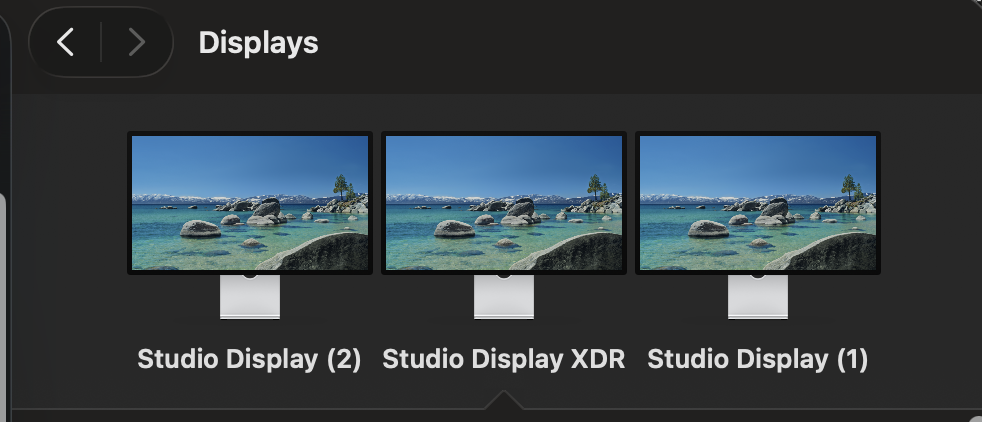
All three are connected using a Thunderbolt 5 cables included in the box. Thankfully even using Daisy Chain, with all these pixels to push, the M5 Max supports True Tone and Adaptive Refresh rates of the new Studio Display XDR.
Wrap Up Summary
Overall the Daisy Chain addition for the Studio Display lineup is a huge welcome. Apple has definitely heard the feedback from their customer base about this feature and I’m glad it’s finally here.
Just Remember…
- M5 MacBook Pro supports Daisy Chain and up to two (2) external displays
- M5 MacBook Air does not support Daisy Chain
- M5 Pro MacBook Pro now supports up to three (3) external displays
- Apple’s older Thunderbolt 4 cables won’t support more than two devices in a Daisy Chain configuration


 practicaloffices.com
Leave a comment